Share outgoing emails with your shared inbox
How to automatically share outgoing emails from a shared inbox with your team and optionally auto-close them to keep your active folders organized

By default, when you send a new email by using the shared inbox address, it won't be automatically shared with your team. Only replies to emails are added to the shared inbox.
To have these outgoing emails shared automatically, follow the steps below. Optionally, you can create a rule to auto-close them, keeping active folders like Unassigned uncluttered.
Enable Automatic Sharing of Outgoing Emails
Steps:
- Access your Workspace settings
Go to your workspace page: https://app.gmelius.com/workspaces - Select the Shared Inbox
Click on the shared inbox where you want this have this behavior. - Open Inbox Settings
Navigate to the Inbox Settings section. - Enable automatic sharing
Turn on the option:
“Share all emails sent from < your shared address>"

After enabling this option, any new outgoing email sent from the shared inbox will be automatically shared with your team.
(Optional) Automatically Close these Outgoing Emails
If you want outgoing emails to not clutter active folders (like Unassigned), you can create an automation rule to close these emails automatically. This way, they are still accessible in the Closed folder but won’t appear in your active inbox.
Steps:
- Access your Rules page: https://app.gmelius.com/automation/rules
- Create a new rule.
- Set the condition: Sender email address contains
<shared inbox email address> - Set the action: Change the status to Closed
- Save the rule:
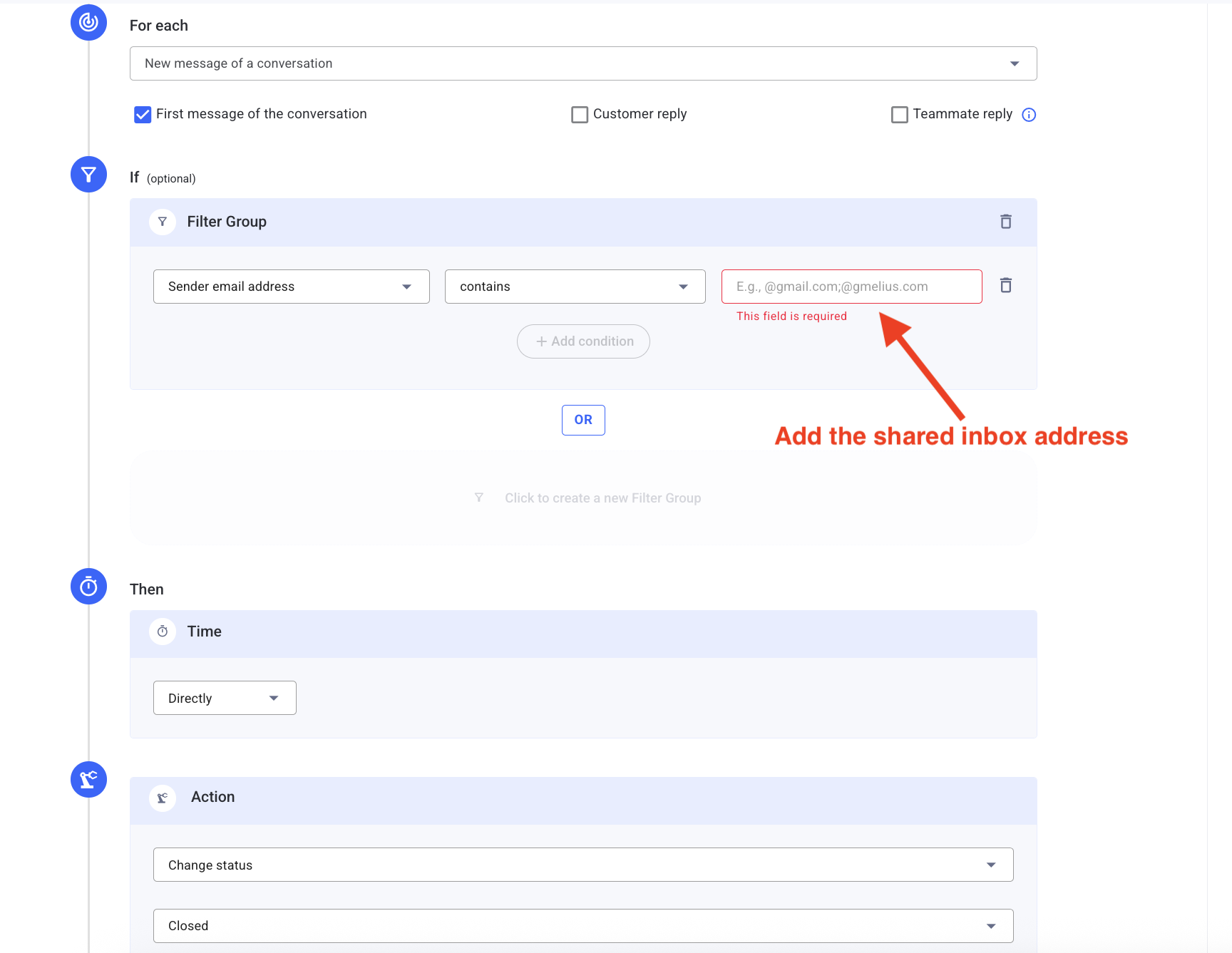
Once this rule is active:
- Outgoing emails from the shared inbox will be automatically shared and closed
- Active folders remain focused on conversations that need attention
How did we do?
How to be notified of assigned emails?
Transfer the ownership of a workspace
