In this page
AI Dispatching
The Gmelius AI Dispatching Assistant reviews each new conversation in a shared inbox, identifies what it’s about, and routes it to the right person automatically.

In this page
AI Dispatching
Meli reviews each new conversation in a shared inbox, identifies what it’s about, and routes it to the right person automatically.
How to Enable AI Dispatching
The AI Dispatching feature is available for all Gmelius shared inboxes on the Growth, Pro, and Enterprise plans (see our Pricing page).
- Open Gmelius dashboard and go to your Workspace list.
- Select the shared inbox you want to configure.
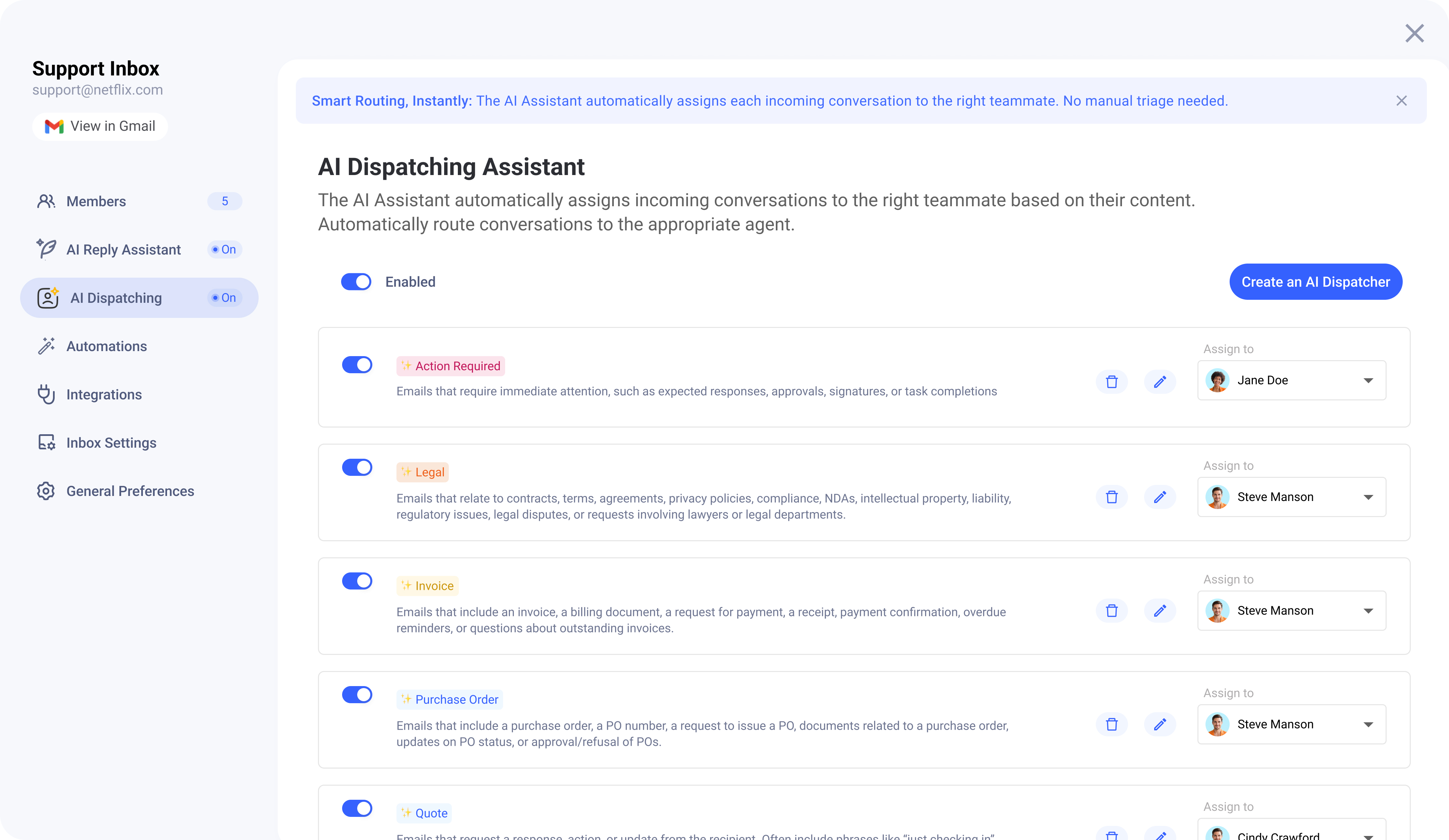
- Open the AI Dispatching tab.
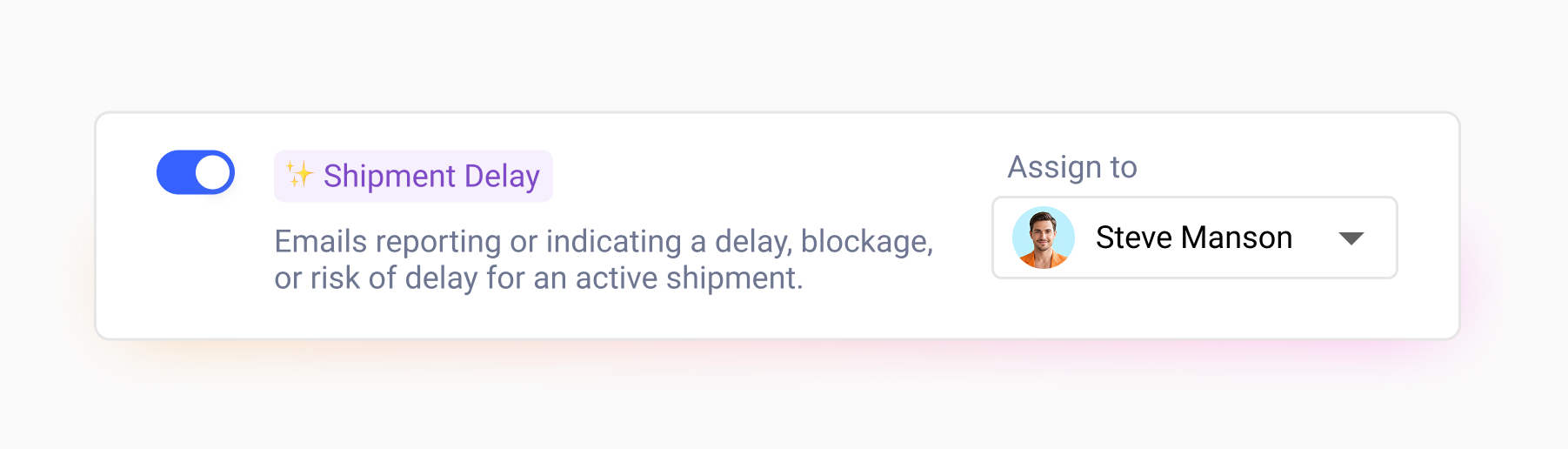
- Enable the relevant tags for your workflows, or create custom tags as needed.
- Assign an owner to each tag by linking it to the appropriate teammate
How AI Dispatching works
Once enabled, Meli continuously monitors new email conversations in your shared inboxes. For each conversation, it analyzes the content, identifies the intent, and applies the most relevant AI tag.
Each tag can be linked to a specific assignee, so once applied, the conversation is automatically routed to the right person or team. This process runs seamlessly in the background, ensuring that operational emails are quickly directed to the correct owner without manual triage.
AI Dispatching is active only in Gmelius shared inboxes and does not affect individual inboxes.
FAQ
Is my data used for training purposes?
No, we have never collected and will never collect any data from your emails for training purposes. We are firmly committed to protecting your data and respecting your privacy. To ensure this, we utilize Google's internal Gemini models, and your data is only processed in transit before being discarded. You can review our privacy notice here: Privacy Policy.
What is used to generate the tags from my emails?
Currently, our system analyzes the content of the first message in your email conversation to determine the relevant tags. We recognize that this might have limitations in terms of accuracy, and we plan to incorporate more context in the future to ensure all relevant details are considered.
Does your AI use attachments or notes?
No, Meli only analyzes the text content of the first message in your conversations. Attachments and notes are not currently used for tag generation.
Does your AI work with multiple languages?
Yes, our system can understand and process multiple languages. While English offers the highest accuracy, other languages are also supported effectively. We encourage you to test this feature with your multilingual conversations and provide us with feedback on its performance in different languages.
To ensure consistent analytics, even if your email is written in a different language, the applied tags will be in English. Currently, it is not possible to customize the names of the tags applied by the AI.
What provider do you use for your AI?
We utilize Google's cutting-edge Gemini models, hosted on our partner Google Cloud Platform, for our Email sorting feature. Our initial release is based on these advanced models, ensuring robust and intelligent tag prediction. We adhere to a strict zero-retention policy for your data processed by these models.
What are the limitations of this feature?
During this initial phase, Meli will automatically tag only new conversations within your shared inboxes. If you manually add conversations to your shared inbox that are older than 4 days, they will not be automatically tagged. This feature is currently exclusive to shared inboxes and is not available for other workspaces like shared labels and boards.
Feedback
We are eager to hear about your experience with Meli! Please share your feedback with [email protected]. Your insights are invaluable in helping our product team improve and implement enhancements in future releases.
Book a call with a Product Coach
Need some help getting started with your AI assistant? Book a quick and free onboarding call with one of our Product Coaches below:
How did we do?
AI Email Sorting Assistant for Gmail
